Scriptable Object Events in Unity and My Cutscene Manager

Hello all. Finals season is over, and I have the most persistent cold I’ve ever experienced… which means I have a lot of time. Luckily, I’ve been working on this project with my friends and had the opportunity to write some really cool code that I’d like to share here. The other engineer on the project, and myself have been trying to build the architecture of this game utilizing a very powerful tool: Scriptable Objects. If you don’t know what these are, I highly recommend watching this talk by Ryan Hipple. TL;DR You can utilize Scriptable Objects to store data, as opposed to individual method calls and dependencies within code, to keep the architecture modular, easily debuggable, and less prone to collapse on you. A Scriptable Object will store a variable and allow any function to access it, or modify it, so that all methods can just respond to this one value. Think “global variable” that exists in the editor.

Another very cool principle in the talk by Ryan is using Scriptable Object Game Events (which take the same above principal, but utilize UnityEngine.Events;) to interface between everything in the scene that would otherwise be dependent through code. So here’s what I wrote: A cutscene manager for my game using Unity Timeline and Scriptable Object Game Events.

How it works: I have a UnityEvent StartScene that is Invoked OnTriggerEnter().

public class StartCutscene : MonoBehaviour
{

    //Event to start scene
    public  UnityEvent startScene;


    //on trigger enter
    private void OnTriggerEnter(Collider other)
    {
        //if player
        if(other.tag == "Player")
        {
            //raise
            startScene.Invoke();
            Debug.Log("Invoked");

        }
    }

}

Then this is what it looks like in editor. As a matter of fact, take my whole “CutsceneTrigger” prefab while you’re at it:
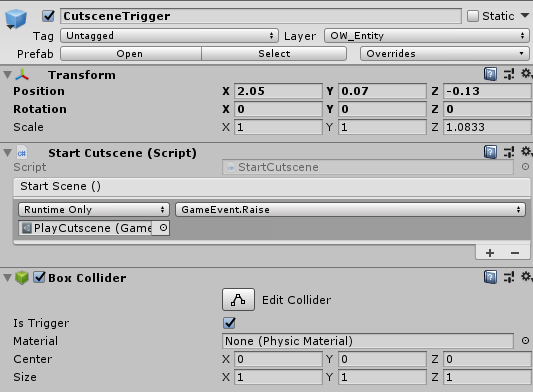
Note the UnityEvent is calling on the Game Event Scriptable Object “PlayCutscene” and Raising it. This signals to any Game Event Listeners (Once again, a Scriptable Object implementing the functionality of a Unity Game Event Listener) elsewhere in the scene that were set to listen to our Game Event Scriptable Object. In this case, I have 2 prefabs listening in on “PlayCutscene”. The first one is my CutsceneManager.

So take a nice long look at that beauty, and I think you might fully see what’s going on here. First off, I have the Game Event Listener which is making a call within my CutsceneManager Script to startNextCutscene(). startNextCutscene utilizes a Dictionary, which I have serialized at the top of the prefab. This dictionary takes the string name and the associated PlayableDirector, which is what controls Unity Timeline Playables. If you’re familiar with Dictionaries then you know they’re not serializable in Editor, but we can fix that with a nifty little work around in code.

//Serialized Dictionary Class
[System.Serializable]
public class Cutscenes
{
    public string cutsceneName;
    public PlayableDirector cutscene;

}


//Cutscene Manager will play the next applicable cutscene, storing all in a dictionary
public class CutsceneManager : MonoBehaviour
{

    //Note to design
    [TextArea]
    public string Notes = "Names should have no spaces or numbers and triggers should be place in order of encounter";

    //Array of Cutscenes, which contain our Dictionary compontents
    public Cutscenes[] toDictionary;

    //Dictionary that takes string name and PlayableDirector
    public Dictionary<string, PlayableDirector> listOfScenes;

    //Int to monitor which have played
    private int selection;

    //Unity Event to on trigger end of scene
    public UnityEvent endCutsceneEvent;


    //establishes Dictionary from serialized "Cutscenes"
    public void Awake()
    {

        //Instantiates Dictionary
        listOfScenes = new Dictionary<string, PlayableDirector>();

        //Fills that shit up
        for(int rep = 0; rep < (toDictionary.Length); rep++)
        {
            listOfScenes.Add(toDictionary[rep].cutsceneName, toDictionary[rep].cutscene);
        }


    }


    //Starts next cutscene
    public void startNextCutscene()
    {

        //Sets temp Playable Director
        Debug.Log("Signal Recieved");
        PlayableDirector temp = listOfScenes[toDictionary[selection].cutsceneName];


        //Starts cutscene
        Debug.Log("Starting...");
        temp.Play();

        //Event "stopped" is assigned to endCutscene, will call this function on raise
        temp.stopped += endCutscene; 
 
        //Increments cutscenes
        selection++;


    }

    //Invokes UnityEvent to tell rest of scene
    private void endCutscene(PlayableDirector aDirector)
    {
        //Ends the cutscene
        endCutsceneEvent.Invoke();

        Debug.Log("Cutscene Ended");
    }

}

So I’ll try to break this down for those who can’t understand my comments, but basically at the very top we have the serialized class Cutscenes, which I’m taking all the components necesary for my dictionary. Then storing them in an array toDictionary. Then, on Awake() I’m taking those individual values from the array and storing them together in my Dictionary ListOfScenes. Also note that I have a UnityEvent here at the top.

So this is where startNextCutscene() comes into play. I take the next PlayableDirector in order and store it in my temp, but note how in the search through my Dictionary ListOfScenes I’m using the corresponding string stored in the Array toDictionary to index the needed PlayableDirector. Just thought that was sick. A little wonky… but cool.

Then temp is played, which cues the animation sequence of the PlayableDirector, otherwise known as the Playable. The PlayableDirector then sets off an event upon finishing which I’m listening to and invoking my own UnityEvent endCutsceneEvent.

This is where my CameraManager comes in. Note that in the above picture of my CutsceneManager Prefab, my Unity Event endCutsceneEvent is attached to another Scriptable Object Game Event “EndCutscene”

From the bottom up, the CameraManager is listening to 2 events, EndCutscene and PlayCutscene. Remember, these are our scriptable events, any listener in the scene has access to them! So these are both invoking responses within my CameraManager script. At the top you can see the manager takes 2 Cameras, as this script is responsible for switching between the cutscene camera, used in our PlayableDirector Playables, and the main camera, used for gameplay. Don’t worry, this is not the only script working on the camera right now, this is just helping us manage between the 2 specifically with Playables. Here’s that code:

[System.Serializable]

public class CameraManager : MonoBehaviour
{

    //Declares the cameras needed
    public Camera playerCam;
    public Camera cutsceneCam;

    public void Awake()
    {
        switchAfterCutscene();
    }


    //Starts the cutscene, swapping cameras
    public void cutsceneStart()
    {

        //Cameras swapped
        switchBeforeCutscene();
        
        //Debug
        Debug.Log("play cutscene");


    }

    //Ends the cutscene, swapping cameras
    public void cutsceneEnd()
    {
        //Cameras swapped back
        switchAfterCutscene();

        Debug.Log("Cutscene end");
    }


    //Swaps active cameras
    private void switchBeforeCutscene()
    {
        playerCam.enabled = false;
        cutsceneCam.enabled = true;

    }

    //Swaps active cameras
    private void switchAfterCutscene()
    {
        cutsceneCam.enabled = false;
        playerCam.enabled = true;
    }
}

Pretty self explanatory, but just note that the methods switchBeforeCutscene() and switchAfterCutscene() are both triggered by the corresponding Game Events in scene, in addition to the startNextCutscene() in the CutsceneManager. I wanted to show you to give an example of how using GameEvent Scriptable Objects allows multiple scripts to interface with one another without ever knowing the other exists!

You have to see how this is such a god send for devs who want to keep dependencies low and the engine easy to use for designers. Here, a designer who has been briefed can easily establish a whole system of cutscenes in their level without ever having to see a single class.

Happy holidays to everyone! I’ll be back soon with more.

Object Interaction

Hello all! Wow… what a few years can do, huh? I have a habit of posting on my birthday, because that’s on of the few days a year you get to do exactly what you want, and writing code is what I want to do! And sharing that code is always fun too! So I thought that in honor of this yearly tradition, we would visit some old code! February of 2018 saw me write some of my first scripts in Unity. I was already pretty well versed in writing code, but Unity was new to me! I ended up writing a few scripts, but one of the scripts I was most proud of was my Object Interaction script. Simple, yeah I know, but I was very proud of this!

Well, here we are now as I turn 23, and am much more confident in my programming, my Unity ability, design ability, and as a human being in general! So why not create an object interaction interface that more properly represents me as I am now? Lets start with just that!

using System.Collections;
using System.Collections.Generic;
using UnityEngine;

public interface IInteractable
{
    string IPrompt();

    void IAction();

    bool IsInteractable();
}

So lets say that IPrompt is the string that pops up on your screen when you’re within range of interacting with the game object. IAction is what the object does upon interacting. IIsInteractable will help us turn off items after one use or once they are not to be used any more!

Easy Enough! Bye!

Just kidding…….. So from here we have to build ourselves an Interacter which we will attach to the player, that will allow the player to interact with items that inherit from IInteractable! So here I’ll sort of get our of detail and loosely tell you what’s going on here! I wanted to make the interactions like they are in Dark Souls, where you can cycle through multiple intractable objects if they are present, and choose which one you would like to interact with! So I build this interacter around an ArrayList, which stores the currently “selected” element in an int. From here, I just have an OnTriggerEnter and Exit that will add the IInteractables to the ArrayList, and allow the player to sort through their IPrompts, and interact with their different IActions!

That really is it for this one! Lots of private methods to just manage the backend of scrolling and interacting, but I’ll include it all here… Please excuse my debug notes! This was also built as a part of the Project Rat I mentioned in my previous post.. I hope you guys like this code and can see the difference in my skill from 2 years ago to now…. Well I should hope you see the difference…. Here’s some code:

using System.Collections;
using System.Collections.Generic;
using UnityEngine;

public class Interacter : MonoBehaviour
{

    //LIFO will keep 
    // private Stack<IInteractable> LIFO = new Stack<IInteractable>();
   
    //AL Instantiation    
    ArrayList InteractionAL = new ArrayList();

    public int selection = 1;


    // Update is called once per frame
    void Update()
    {
        if (Input.GetKeyDown(KeyCode.E))
        {
            doSomething();
        }
        else if (Input.GetKeyDown(KeyCode.R))
        {
            scrollSelection();
        }
    }

    //Adds Object to the ArrayList if is interactible
    private void OnTriggerEnter(Collider other)
    {

        Debug.Log("Something entered my zone!");

        //Gets the game object from the collider entered
        //HERE
        IInteractable newInteractable = other.GetComponent<IInteractable>();

        //If is interatable, add
        if (newInteractable.IsInteractable())
        {
            InteractionAL.Add(newInteractable);

            //Debug Log
            Debug.Log("Added");

        }

    }

    //Removes most recent from the ArrayList on exit
    private void OnTriggerExit(Collider other)
    {
        //Debug Log
        Debug.Log("-1 in array");

        //Finds the collider exited, and removes from the AL
        InteractionAL.Remove(other.GetComponent<IInteractable>());

        
    }

    //Returns the prompt of the IInteractible 
    public string getPrompt(IInteractable temp)
    {

        //Debug Log
        Debug.Log(temp.IPrompt());

        //Returns prompt
        return temp.IPrompt();
    }
    

    //Calls IAction
    //Possibly remove if one time use only
    private void doSomething()
    {

        //Temp IInteractabale
        IInteractable temp = getSelected();

        //If not null
        if(temp != null)
        {

            //Do Something
            temp.IAction();
           
            //Debug
            getPrompt(getSelected());

        }

  
    }

    //Retrieves the IInteractable which is currently to be displayed
    //Incremented by scrollSelecion()
    private IInteractable getSelected()
    {
        //If not empty
        if(InteractionAL.Count != 0)
        {
            //castes the IInteractable as an IInteractable
            return (IInteractable)InteractionAL[(selection - 1)];
        }

        //else
        else
        {
            return null;
        }
      
    }

    //Increments the int which getSelected returns
    private void scrollSelection()
    {
        //Takes size of ArrayList starting at 1
        int tempSize = InteractionAL.Count;

        //Increments selection as long as it's not at the end
        if (selection < tempSize)
        {
            selection++;
        }

        //Resets the scroll selection to the front. 
        //I hate hardcoding this, but this wont change as long as we use .Count
        else if(selection == tempSize) 
        {
            selection = 1;
        }

    }
}

Object Pooling

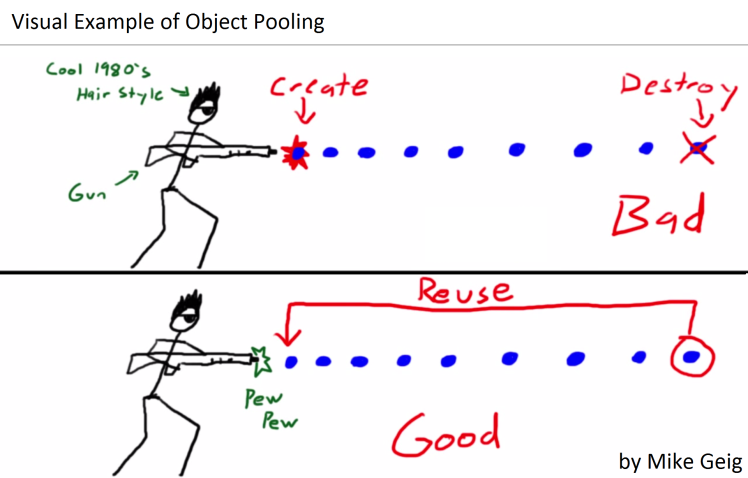
Hello all! I know I know, more than 1 post in the span of a month? How lucky are you! Well the answer is you’re not, because my last post was a month and a week ago now… so calm down, you. But I do bring some cool stuff to share! Ever heard of Object Pooling in Unity? In brief: If you have a GameObject which you’re constantly creating new copies of and then destroying right after, such as a projectile or an effect, it can be really unnecessarily taxing on your CPU. So an Object Pool just instantiates all necessary instances of the GameObject at the start of the game, and just recycles them, setting them active and inactive when needed, and expanding if necessary, much like an ArrayList, to accommodate however many instances of the object your game needs.

I’m just beginning work as an engineer on a game with some of my friends at school. For now we have dubbed the game “Project Rat”, and this game is why I’ve built this Object Pooler! It’s a really easy object to build but I’ll talk a little about it. I’d like to also start by saying that I read and learned about Object Pooling from Mark Placzek. To start, we define an ObjectPoolItem Class which contains an Int that defines the initial size, a GameObject which will hold the prefab that is to be pooled, and then a bool to represent if we want this size to be dyamic, or a fixed value.

From here we define the ObjectPooler Class, which is a monoBehaviour. Here we declare the List that will be our pool, as well as the List that will contain all of the pools, for easy access by the GameManager. The pool list is then instantiated in Start(), where we then have a loop instantiating as many copies of the GameObject as defined in our ObjectPoolItem (both the GameObject and the size are defined there). In this loop the newly instantiated GameObject is set inactive then added to our List.

And… That’s really it! Then just create a function that takes a string of the tag of item being sought, and returns the first instance of an item with that tag which isn’t already .activeInHeirarchy(). It’s here that we can also create a check on the size of the List and compare it to how far we have to go into our List to get a new GameObject, and decide if we want the List to expand or not, using the bool we defined in the ObjectPoolItem, and just instantiating a new GameObject as we did in Start().

Sweet! Now you just need to keep in mind that the Object Pooler is storing inactive GameObjects, so however you call them you must remember to set them active! And then set inactive once they are no longer in use so that they may be recycled by our object pool! Here’s some code:

using System.Collections;
using System.Collections.Generic;
using UnityEngine;


//Declares necessary values
[System.Serializable]
public class ObjectPoolItem
{
    public int amountToPool;
    public GameObject objectToPool;
    public bool expand = true;

}

public class ObjectPooler : MonoBehaviour
{

    public static ObjectPooler SharedInstance;

    //Declares List to hold pools
    public List<ObjectPoolItem> listOfPools;

    //Declares List to hold GameObjects 
    private List<GameObject> objectPool;


    void Awake()
    {
        SharedInstance = this;
    }

    void Start()
    {
        //Instantiates List
        objectPool = new List<GameObject>();

        foreach (ObjectPoolItem item in listOfPools)
        {
            // Instantiates the "Object to pool". sets inactive, and stores in List for number in amountToPool
            for (int rep = 0; rep < item.amountToPool; rep++)
            {
                GameObject obj = (GameObject)Instantiate(item.objectToPool);
                obj.SetActive(false);
                objectPool.Add(obj);
            }
        }
    }

    //Returns an INACTIVE instance of the pooled object, need to match tag
    //Can also specify when to expand and when not to.
    public GameObject GetPooledObject(string tag)
    {
        //Cycles through active and inactive elements in List
        for (int rep = 0; rep < objectPool.Count; rep++)
        {
            //If Inactive
            if (!objectPool[rep].activeInHierarchy && objectPool[rep].tag == tag)
            {
                return objectPool[rep];
            }

        }

        //expands necesary lists all at once
        foreach (ObjectPoolItem item in listOfPools)
        {
            if (item.objectToPool.tag == tag)
            {
                if (item.expand)
                {
                    GameObject obj = (GameObject)Instantiate(item.objectToPool);
                    obj.SetActive(false);
                    objectPool.Add(obj);
                    return obj;
                }
            }
        }

        return null;
    }
}